Best Apps for Passport Photos
Ever needed passport photos at the last minute and hated the cost or hassle of a photo booth or studio?
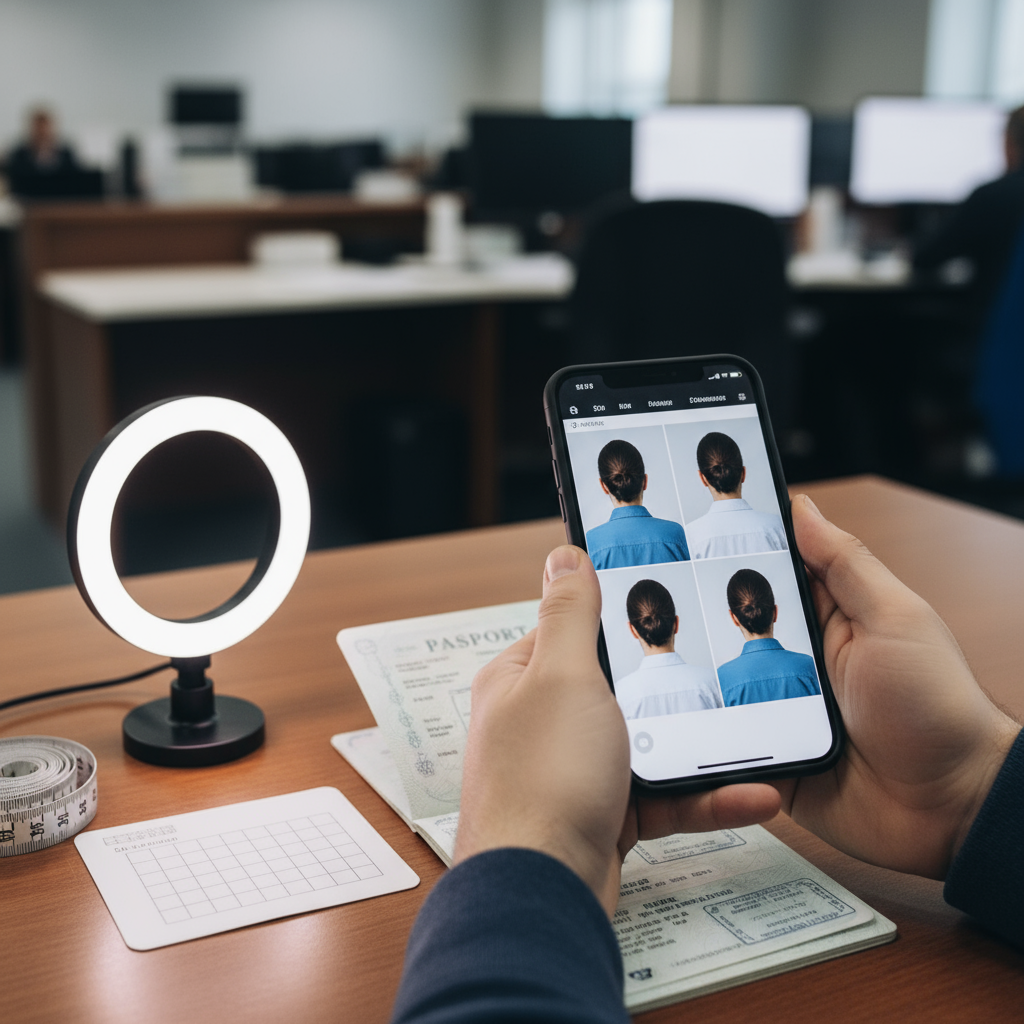
Passport photo apps let you create compliant, professional-quality ID photos at home using just your smartphone.
These apps focus on meeting government requirements like sizing and background specifications while giving you control over final image quality.
Why Choose a Passport Photo App
Passport photo apps offer convenience, cost savings and quality control, and many use AI to handle complex requirements so you don’t need technical expertise.
Key compliance features to look for in an app include background removal to the required solid color, precise cropping to standard sizes, and tools to maintain a neutral, natural facial appearance.
Some apps add verification layers—AI checks plus professional review—and even offer money-back guarantees if photos are rejected.
Top Apps and Their Compliance Features
Facetune is presented as a comprehensive passport photo solution with advanced tools to create professional-quality, compliant passport photos.
Facetune’s background removal technology replaces original backgrounds with the required solid white and its cropping tools automatically adjust photos to standard passport sizes such as 2x2, 4x4 and 4x6.
Facetune also includes enhancement features designed to preserve a neutral expression and a natural look while improving lighting, color and subtle facial appearance for official documents like green card photos and US visa applications.
PhotoAiD provides a 3-step process combining AI enhancement with professional review to verify government compliance, and it offers digital downloads, printing services and a money-back guarantee if photos are rejected.
PhotoAiD also advertises 24/7 customer support and expert verification to help ensure submitted images meet international document requirements.
iVisa Passport Photo automates selfie-to-passport photo conversion with automatic cropping and background removal, focusing on international travel document standards and offering money-back policies for rejected photos.
Passport Photo & ID Maker emphasizes a user-friendly interface with an extensive country database, clear examples of acceptable photos, and both free and premium options plus printing services for physical copies.
ID Photo Application offers basic passport photo creation with background removal, cropping tools and manual editing, providing free access to core features for standard document requirements.
Why Choose Facetune as Your Passport Photo App
Facetune is highlighted for going beyond minimal compliance by combining background removal, precise sizing and professional-grade enhancement tools in a single platform.
The app claims to adapt to various document types and formatting needs while keeping a professional, natural appearance appropriate for official documents.
How to Create Passport Photos with the Facetune App — Step-by-Step
Step 1 — Select Your Photo: Choose a clear, well-lit smartphone photo with a neutral facial expression as your starting image.
Step 2 — Remove and Replace Background: Use Facetune’s background removal tool to replace the original background with the required solid white background for official compliance.
Step 3 — Enhance Your Appearance: Apply Facetune’s Enhance tool and Looks filters to naturally improve skin and lighting while maintaining the neutral, natural look required for official documents.
Step 4 — Perfect Your Look (Optional): If needed, use hair color simulation or clothing editing features to adjust your appearance within acceptable parameters for documentation.
Step 5 — Crop to Passport Size: Use Facetune’s precise cropping tools to set the photo to required dimensions such as 4x4 (1:1 ratio) or 4x6 (2:3 ratio), or other standard sizes like 2x2 depending on document needs.
Pro Tip: Use the app’s combined editing workflow to create multiple consistent document photos with professional quality in one session.
Checklist & Final Validation Steps
Before submitting, verify background is solid white, the face is centered with a neutral expression, and the image is cropped to the exact size required by the issuing authority.
Use the app’s compliance checks or professional review options when available, and consider money-back guarantees or support services if your agency rejects the photo.
If you need physical prints, use a service provided by the app or a verified printing option to ensure size and color fidelity remain compliant.
Check country-specific requirements and use the app’s example images and country database (when provided) to match the exact standards of your destination or issuing authority.
Common Mistakes to Avoid
Avoid non-compliant backgrounds—use the app’s background removal to ensure a solid white backdrop as required.
Don’t submit photos with incorrect sizing or improper cropping—use the app’s precise size presets (2x2, 4x4, 4x6, etc.) to match requirements.
Avoid unnatural edits that change the neutral expression or natural look required for official documents; use subtle, natural enhancements only.
Final tip: rely on apps that combine automated AI checks with professional review and clear country-specific guidance to reduce rejections and last‑minute hassles.