Best Apps for Passport Photos
Free passport photo apps promise convenience, but ID photos must meet stringent requirements (size, background, facial visibility), and no free app can guarantee acceptance for you, so choose tools and steps that prioritize compliance.
We tested 8 apps (PhotoAiD®, PersoFoto, Pics4Pass/BioID, Passport Photo—ID Photo, Passport Photo & ID Maker, iVisa Passport Photo, IDPhoto4You, and ID Photo Application) to evaluate how well they cover requirements such as cropping, background removal, compliance checks, and printing.
When judging passport-photo apps, focus on four compliance-related features: correct cropping/resizing to the required dimensions, reliable background removal or a white shooting environment, an automated or expert compliance check, and an acceptance guarantee or refund policy.
PhotoAiD® workflow emphasizes compliance: upload or take a photo, let the PhotoAiD AI check and fix it, have an expert verify the result, then download or order prints — PhotoAiD offers expert verification and an acceptance guarantee (100% acceptance or 200% money back).
PersoFoto is a fully free browser tool that provides manual cropping to predefined sizes and offers a paid compliance check; it does not remove backgrounds, so you must photograph against a white/off-white wall or remove the background yourself before submitting.
Pics4Pass (BioID) performs automatic cropping and offers AI verification of requirements, but it won’t erase the background and requires account creation; it has no acceptance guarantee and provides no printing service.
Passport Photo—ID Photo (mobile) includes editing tools and cropping but reserves background removal for the paid version; the free flow contains intrusive ads, and the app does not provide a compliance guarantee or printing for free users.
Passport Photo & ID Maker has a modern interface and a large country-size database so you don’t need to memorize dimensions; background removal and printing are available only in the paid version and there is no compliance check in the free plan.
iVisa Passport Photo automates cropping and offers expert reviews and background removal in its paid service, but you cannot preview the final image before purchase, it accepts selfie-style photos only, requires contact details up front, and its money-back policy lacks public detail.
IDPhoto4You is completely free and can resize uploads to printable templates but its manual cropping tool can be inaccurate, it produces only printable templates (no digital photo for online renewals), and the site disclaims responsibility if your photo is rejected.
ID Photo Application includes a cropping tool and a background remover, but the app lists sizes in millimeters without clear categorization, its background-removal process can require multiple attempts and shows intrusive ads, and no compliance check or guarantee is provided.
Practical tip — always prioritize a plain white or off-white background when you shoot: many free apps lack reliable background removal, so starting on a compliant backdrop avoids a common rejection reason.
Practical tip — avoid photo editing adjustments such as contrast or exposure changes unless the app explicitly allows them; the review found that such edits may lead to non-compliance and higher rejection risk.
Practical tip — posture and expression matter: for US passport photos a gentle, close-mouth smile is allowed, so practice a neutral-to-slight smile that keeps mouth closed and face natural to comply with strict guidelines.
Practical tip — clothing and hair: avoid light-colored clothes and camouflage patterns that blend with the background, make sure the oval of your face is clearly visible, and keep eyebrows unobstructed so facial features meet verification checks.
Glasses: Both
Actionable checklist before using any passport-photo app: (1) Choose an app that offers compliance checks or expert verification if you want higher acceptance odds; (2) Shoot against a white/off-white wall with good, even lighting; (3) Take multiple shots (unlimited shots are useful if available); (4) Use apps that provide printing or a downloadable digital image when needed; (5) Avoid editing filters and follow the app’s crop guides exactly.
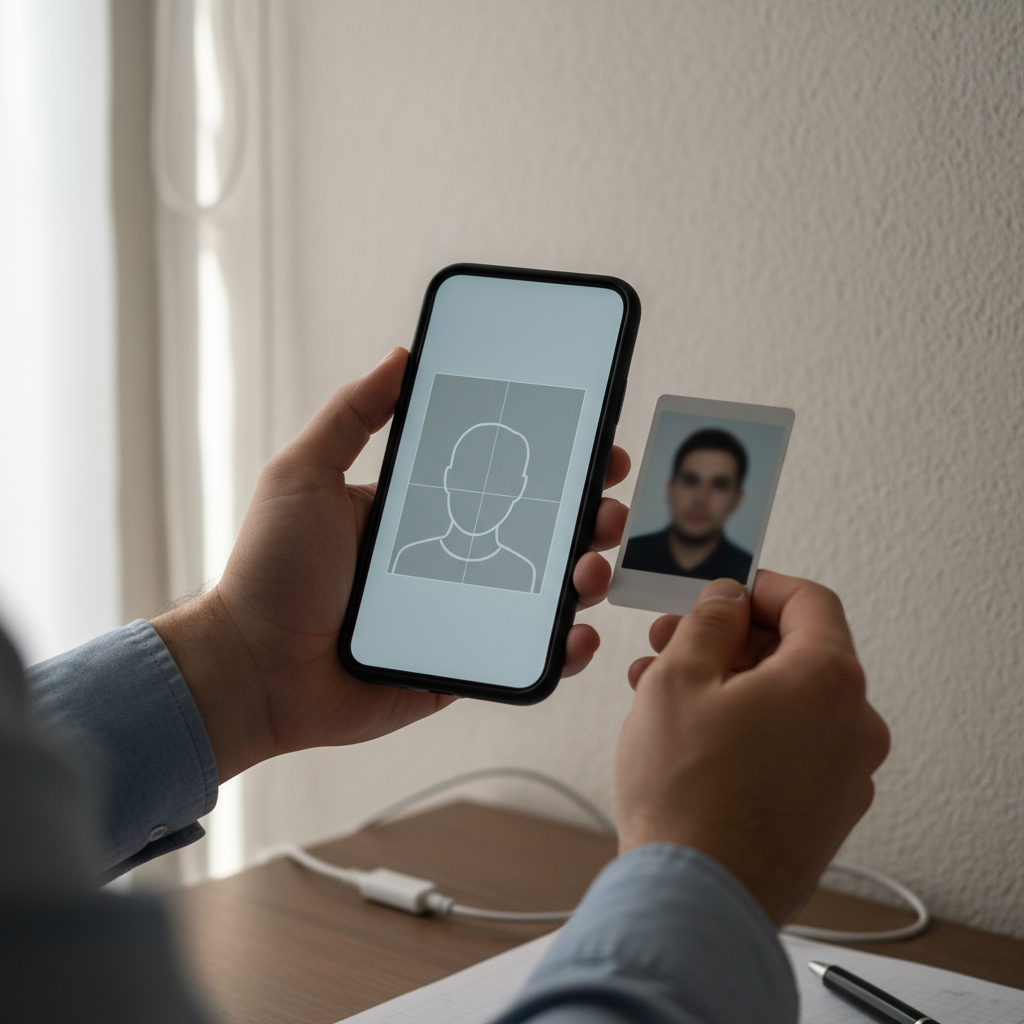
Final practical steps using a compliance-focused app (example flow used by PhotoAiD): upload or take a photo, let the app’s AI check and make fixes, have an expert verify the final image, then download the digital file or order prints — following this workflow reduces the chance of rejection compared with using free manual tools alone.