How VisaSnap Detects Incorrect Backgrounds
Overview
VisaSnap uses AI-powered analysis to check that the background of your ID photo meets official photo requirements. Background problems are a common cause of rejection for professional licenses, permits, secure access cards, and immigration photos — so understanding how VisaSnap detects incorrect backgrounds helps you avoid delays.
What the system checks
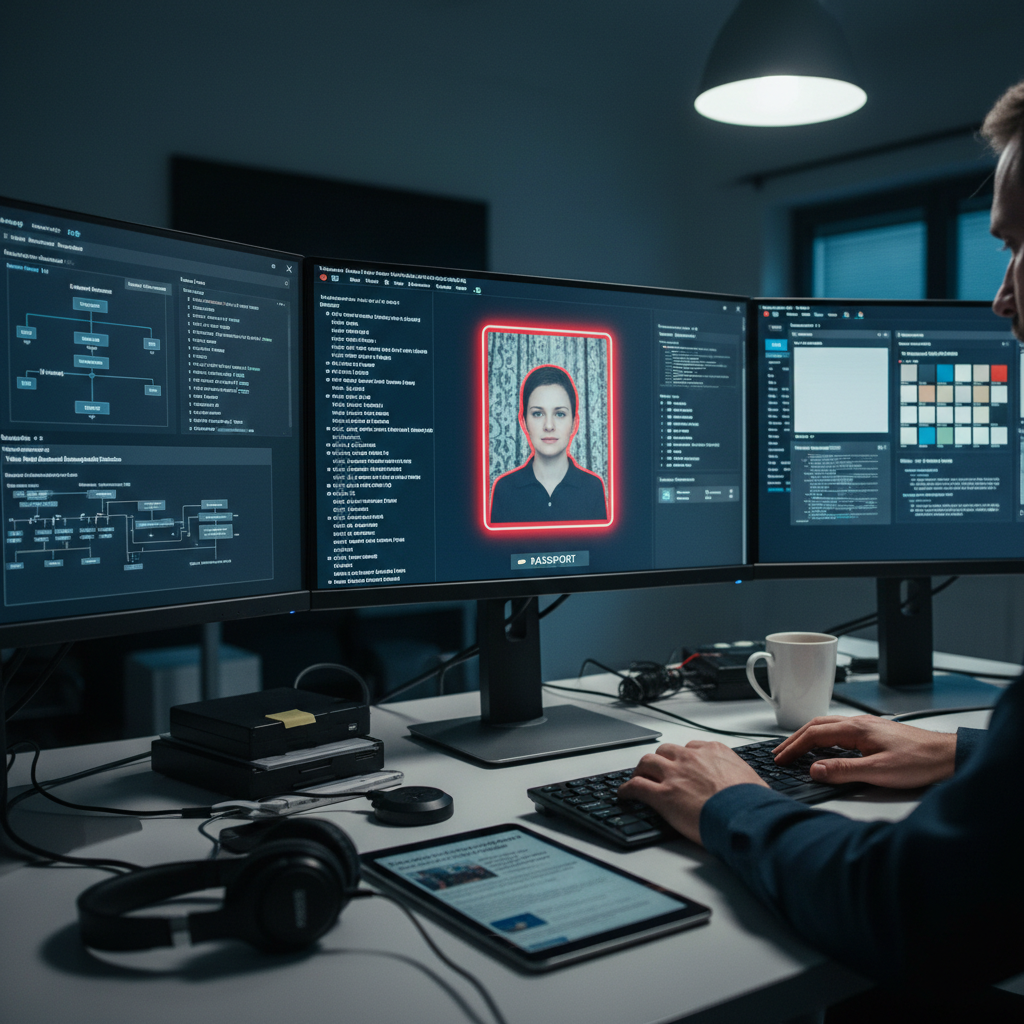
VisaSnap examines the photo’s background for compliance with standard rules used across many issuing bodies. The checks include background color (plain white or off-white when required), uniformity (no patterns or textures), and the presence of shadows or objects that could cause rejection.
Background color and tone
One of the primary checks is background color. Many agencies require a plain white or off-white background. VisaSnap flags backgrounds that are too dark, tinted, patterned, or otherwise non-uniform when the issuing guidelines call for white/off-white.
Uniformity and patterns
Patterns, wallpaper, furniture, or visible objects in the background are common causes for rejection. VisaSnap looks for non-uniform areas and textures and will mark a photo as non-compliant if the background contains patterns or identifiable items.
Shadows and lighting issues
Shadows behind the head or on the background are detected because they can interfere with biometric matching and visual clarity. VisaSnap evaluates lighting and flags photos with harsh shadows or uneven illumination that violate the “avoid shadows” guideline.
Contrast and subject separation
The tool checks that the subject stands out clearly from the background. If clothing or hair blends into the background color (for example, wearing a white top on a white background), VisaSnap will indicate a potential compliance problem.
Accessories and obstructions
VisaSnap also detects accessories that obscure facial features or create background-like shapes (for example, large hats or sunglasses casting shadows). Many licenses and permits require no hats or sunglasses; the system flags violations of these rules.
Pose and framing related to background
Background compliance often depends on correct framing and cropping. VisaSnap verifies that the head position, size within the frame, and crop leave the required clear area around the subject and that the background around the head remains uniform.
Technical validation: size, crop, and adjustments
Beyond background content, VisaSnap checks image size and crop against the required dimensions. It can automatically crop and resize photos to meet guidelines while keeping the background uniform and compliant.
Background removal and correction
If the background fails the uniformity test, VisaSnap can remove and replace the background using its AI tools. It can also adjust brightness and contrast to eliminate minor issues — but replacement is used only when it produces a compliant, natural-looking result.
How VisaSnap reports problems
When a background issue is detected, VisaSnap provides specific feedback: e.g., “non-uniform background,” “visible shadows,” or “background color not acceptable.” This actionable feedback tells you exactly what to fix before resubmitting.
Practical step-by-step: prepare a compliant background
1. Use a plain white or off-white backdrop — a smooth wall or plain sheet works best.
2. Ensure the background has no patterns, furniture, or visible objects.
3. Position the subject a few feet away from the background to minimize shadows.
4. Use even, natural lighting (avoid direct harsh sunlight) to reduce shadows and hotspots.
Practical step-by-step: take the photo correctly
1. Use a high-quality camera or smartphone and keep the lens clean.
2. Frame the head and shoulders with a neutral expression and eyes open.
3. Wear clothing that contrasts with the background so the subject stands out.
4. Remove hats, sunglasses, and other face coverings unless permitted by the issuing authority.
Using VisaSnap’s correction tools
If VisaSnap flags the background, try these actions: retake the photo using the preparation tips above; use the built-in background removal to replace a non-uniform background with plain white/off-white; or adjust brightness/contrast with the tool to fix lighting problems.
When to consult guidelines or a professional
Some licenses and permits (CDL, certain state gun permits, TWIC, USCIS forms) have very specific background rules. Always check the issuing board’s requirements before finalizing your photo. If you can’t achieve compliance at home, consider a professional photo service that guarantees compliance.
Tips to avoid common mistakes
- Avoid patterned clothing that can blend with the background.
- Don’t stand too close to the background to prevent shadows.
- Test photos in the same lighting you’ll use for the final image.
- Use VisaSnap’s feedback and retake until the tool indicates compliance.
Final compliance checklist
- Background is plain white or off-white (unless your issuing authority specifies otherwise).
- No patterns, objects, or visible furniture in the background.
- No harsh or uneven shadows behind the subject.
- Subject contrasts with the background and is properly framed.
- No prohibited accessories (hats, sunglasses) obscuring the face.
- Image size and crop meet the specified dimensions.
Quick action path if VisaSnap flags your photo
1. Read the specific feedback message from VisaSnap.
2. Retake the photo following the checklist above.
3. Use VisaSnap’s background removal or brightness/contrast adjustments if appropriate.
4. If still non-compliant, check the issuing agency’s rules or use a certified photo service.
Summary
Background problems are a leading cause of ID photo rejection, but they’re preventable. VisaSnap’s AI-powered checks look for background color, uniformity, shadows, and other issues, and provide targeted feedback. Follow the practical steps above — plain background, even lighting, proper framing, and removal of obstructions — to create a compliant photo and avoid delays in your application.