How VisaSnap Uses AI to Validate Your Photo
Important disclaimer
This article is for entertainment and experimental purposes only. We strongly advise against using AI-generated or modified photos for actual passport or visa applications. Most government agencies explicitly prohibit the use of AI-generated or manipulated photos, and submitting such photos could result in application rejection or legal issues. Always use professionally taken, unmodified photos for official documents.
Overview: AI tools in the workflow
This guide explains, based only on the provided source material, how an AI workflow can transform a casual snapshot into a portrait-style image and then how a professional service (VISASnap.com) uses automated cropping and expert validation to check compliance with passport and visa photo rules.
Two parts: image editing and compliance validation
The workflow described in the source text has two distinct steps: (1) using an image-editing AI (Grok 3) to create a studio-quality portrait from a casual photo, and (2) using VISASnap to automatically crop, adjust, and validate the image against official requirements.
What Grok 3 does
Grok 3 (an xAI tool integrated into X/Twitter) accepts an uploaded photo and a plain-language editing prompt. It can adjust background, crop to head-and-shoulders, and modify lighting to produce an edited image that looks professional and closer to passport/visa standards.
How to use Grok 3 (step-by-step)
1. Open Grok 3 in the X mobile app or website by tapping the Grok icon.
2. Upload your casual photo using the attach-media button.
3. Type a clear editing prompt into the prompt box (example prompt below).
4. Wait for Grok to return the edited image and review the output.
Example editing prompt
The source example prompt used was:
"Use this photo of mine and create a studio quality portrait photo of me looking straight into the camera."
Another example from the step-by-step section:
"Take this photo of me and transform it into a studio-quality portrait where I'm facing the camera directly."
Tips for getting better Grok output
Start with a front-facing photo where eyes are visible and lighting is good. If the first result isn't perfect, tweak the prompt wording or run the prompt again. Multiple attempts and small prompt adjustments often produce better results.
Current limitations to know
Grok 3 can be powerful but the source notes output quality may sometimes be inconsistent. The tool is evolving, and future updates are expected to improve results. Remember: AI-edited images are for experimentation and not for official use.
Why VISASnap (automatic cropping + validation)
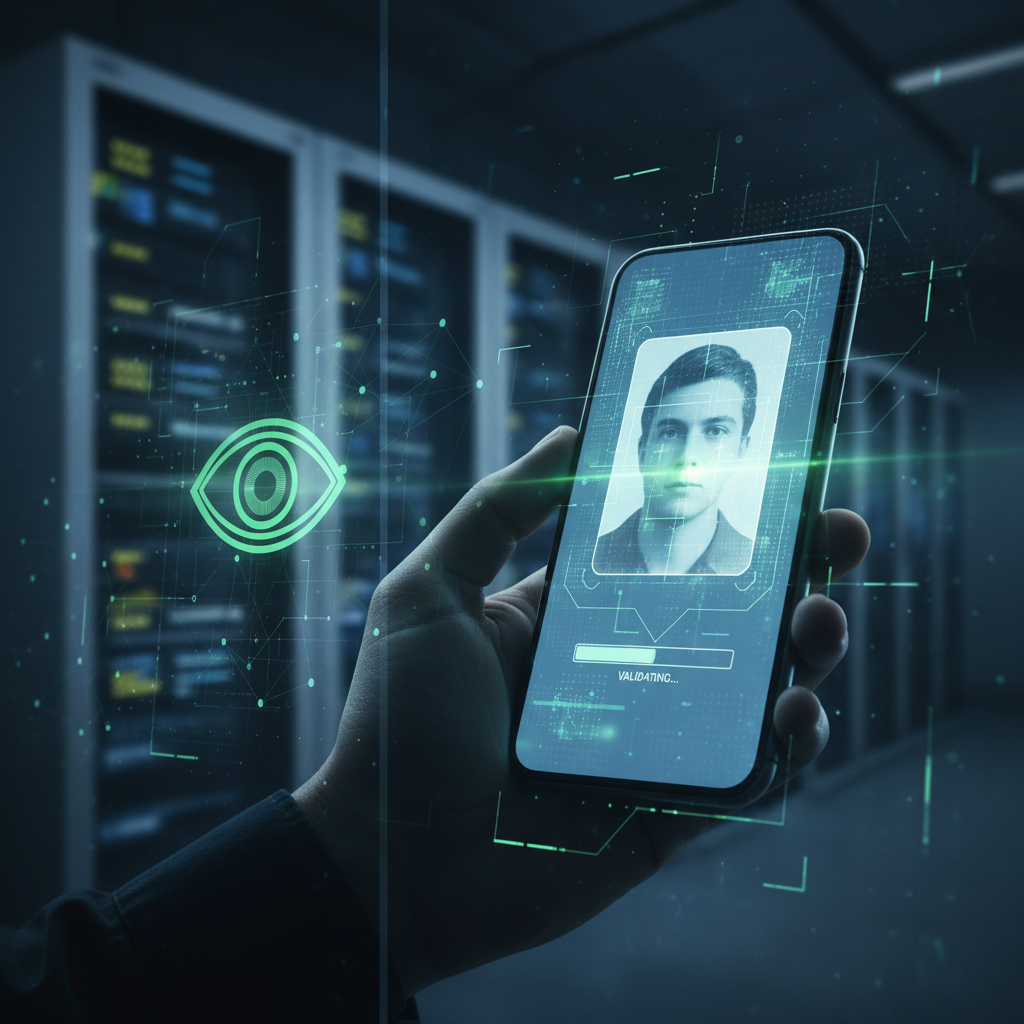
For legitimate passport and visa photos, the source recommends using VISASnap.com. VISASnap automatically crops and adjusts your image to meet official standards, and provides expert validation to check compliance before you submit to an issuing authority.
Quick VISASnap workflow
1. Visit VISASnap.com.
2. Upload the Grok 3-enhanced photo (or an original photo you prefer).
3. The AI will automatically crop and adjust the photo to meet U.S. passport requirements.
4. Submit the image for expert review. You will receive an email with the result.
What VISASnap checks (as stated)
According to the source, VISASnap expert review covers: correct size (2 x 2 inches for US passport), proper head positioning, appropriate lighting, background compliance, and expression and pose guidelines.
Turnaround and results
The source states the expert team will review your photo within 15 minutes. You will receive either an approved passport photo ready for download or clear instructions on how to fix issues.
Final output characteristics
After VISASnap processing, the example output will be perfectly cropped to 2 x 2 inches, optimized for passport requirements, and ready for immediate download and printing.
Practical preparation tips (actionable)
- Start with a clean, front-facing photo with your eyes clearly visible.
- Ensure good, even lighting in your source image before editing.
- If using Grok 3, include specific language in your prompt requesting head-and-shoulders framing and facing the camera directly.
- Review the Grok output carefully; if eyes or head positioning look altered, re-run or refine the prompt.
- For final submission, use VISASnap (or a professional, unmodified studio photo) for automatic cropping and expert validation.
Common mistakes to avoid
- Relying on AI-generated or heavily edited images for official documents (explicitly discouraged in the source).
- Starting with a poorly lit or non-front-facing photo—Grok can improve many images, but visible eyes and a front-facing pose yield more reliable results.
- Assuming one prompt run will be perfect—sometimes you must tweak wording or retry.
Action checklist before submission
- Verify the photo is not AI-generated or manipulated if you intend to use it for an official application.
- Confirm final image dimensions (2 x 2 inches for US passport as noted).
- Check head positioning, lighting, and background compliance through a validation service like VISASnap.
- Follow any correction instructions provided by expert reviewers if the first submission is not approved.
Final reminder
This workflow is presented for experimental and educational purposes in the source text. For any official passport or visa application, always use professionally taken, unmodified photos that comply with the issuing authority’s requirements. Submitting AI-generated or manipulated photos can lead to rejection or other consequences.
**Want real photos?** VISASnap.app provides actual compliant passport photos. (https://visasnap.app)