AI vs Human Review: Who Detects Errors Better
Digital passport photo rejections follow a predictable pattern — and understanding how the U.S. Department of State’s 2026 automated pipeline evaluates images is the fastest way to avoid wasting time on resubmissions.
The Department of State’s online renewal portal runs every uploaded image through a layered automated validation pipeline before a human reviewer is involved. The validator enforces strict technical requirements and rejects any file that fails a single criterion.
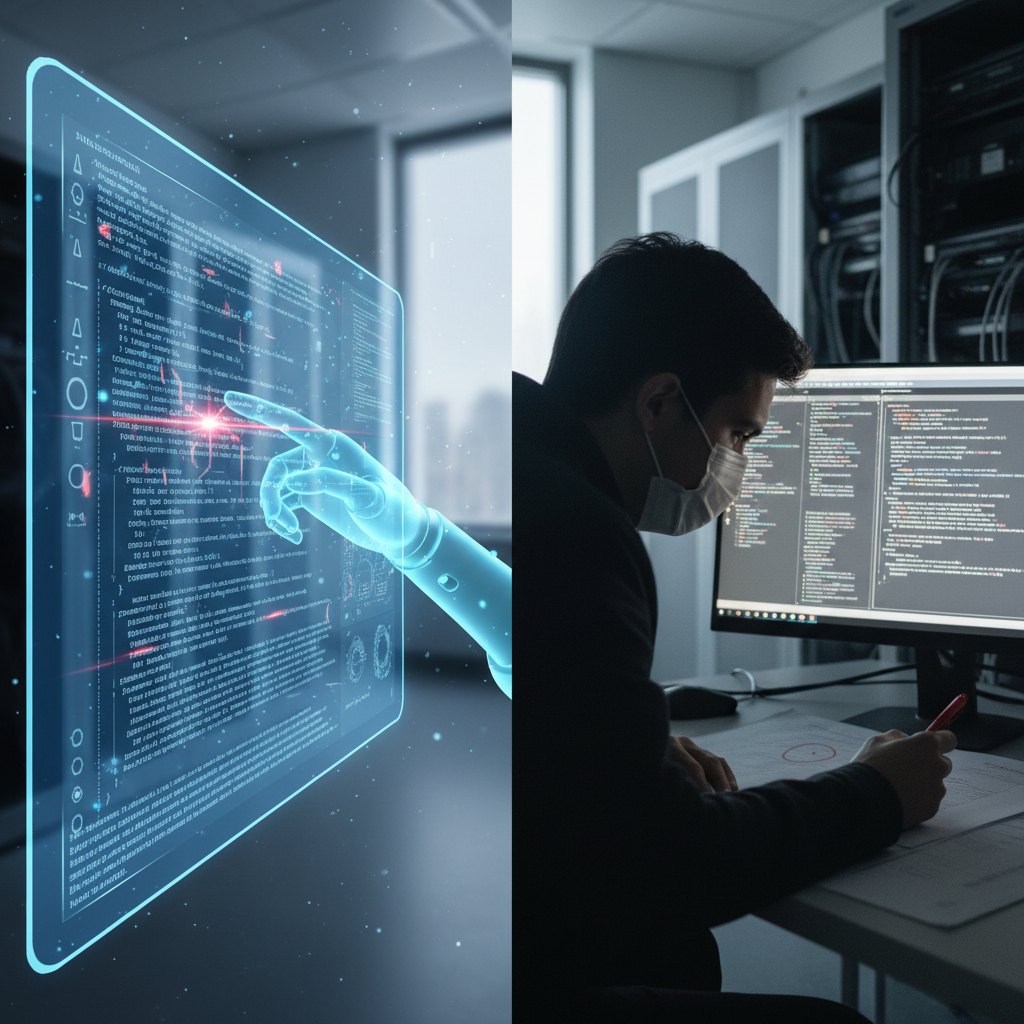
Validation starts the instant you upload. The automated system scans image properties first (pixel dimensions, file format, color profile, file size, metadata, orientation, exposure and background uniformity). Only files that pass these automated checks are forwarded — in a limited number of cases — to a human reviewer.
Human review is applied only when automation cannot confidently classify an image. Examples are when biometric feature detection is inconclusive, lighting or background quality is marginal, or the system is uncertain about a possible violation. Because automation filters most uploads, human reviewers see far fewer borderline images than in the pre-automation era.
Automation (AI) has become stricter. The validator tolerates much less “almost OK” material: off‑white walls, minor color casts, slight head-size errors, or compression artifacts that a human might accept now trigger immediate failures.
Below are the 14 most common rejection reasons, why the automated system flags them, which 2026 U.S. rule they violate, and the exact correction required. Each entry is written to help you fix the issue before resubmitting.
1) Incorrect dimensions or non-square aspect ratio
The system requires a square image between 600×600 px and 1200×1200 px. Any file outside that range or with unequal width/height is rejected immediately because it misaligns the face inside the biometric template.
Fix: Re-crop and re-export to a true 1:1 square at a pixel size within 600×600–1200×1200 px.
2) File too large or too small
File-size rules differ by submission type: ≤240 KB for visas and DV Lottery; 54 KB–10 MB for passport renewals. Files above the ceiling fail JPEG validation; files that are over-compressed fall below the practical quality threshold and lose biometric detail.
Fix: Re-export with balanced JPEG compression to meet the correct size limits while retaining facial detail.
3) Wrong file format or color profile
For passports the system accepts JPEG, PNG, HEIC/HEIF (passport renewals); for visas and DV Lottery entries JPEG is required. All must be exported in sRGB. Wide-gamut profiles (AdobeRGB, Display P3) and incorrect formats are rejected.
Fix: Export from the original source in JPEG (or allowed format for renewals) and set the color space to sRGB before uploading.
4) Blurry or pixelated image
Any out-of-focus, grainy, or heavily smoothed photo is rejected because the system cannot extract reliable biometric landmarks. Motion blur, soft focus, or aggressive retouching are common causes.
Fix: Reshoot with a steady camera, sharp focus, and adequate lighting; avoid smoothing filters.
5) Shadows on face or background
Shadows—on the face or behind the head—are interpreted as background non-uniformity or noise and cause rejection. The validator’s segmentation expects a clean white field with uniform lighting.
Fix: Adjust lights or reshoot in an environment that eliminates shadows on both the subject and background.
6) Non-white background
The automated check requires a pure white background (#FFFFFF) with no texture, tint, gradient, or crease. Even slight off-white tones are flagged during edge/background detection.
Fix: Reshoot against a flat white backdrop under uniform lighting or remove background inconsistencies.
7) Non-neutral facial expression
Smiling or open mouths alter landmark positions and are detected as deviations from the required neutral, closed-mouth expression. The system rejects any expression other than neutral.
Fix: Reshoot with a completely relaxed face, mouth closed, and eyes open.
8) Incorrect head size
The head must occupy 50–69% of the image height. Heads that are too large, too small, or surrounded by excessive empty space fail biometric alignment checks.
Fix: Re-crop or reshoot so the head height falls between 50% and 69% of the image height.
9) Glasses or facial obstructions
Glasses (and associated glare or frame shadows) are prohibited; any occlusion of the eye area or landmarks causes rejection. The rule prohibits glasses and other obstructions.
Fix: Remove eyewear, hats, or other obstructions and reshoot with the full face visible.
10) Over- or underexposure
Extreme exposure on either end destroys or obscures facial features that biometric mapping requires. The validator applies brightness normalization but cannot recover lost detail.
Fix: Reshoot with balanced, uniform lighting so facial details are clearly visible without blown highlights or deep shadows.
11) Digital alterations
Filters, smoothing tools, and AI-generated enhancements change skin texture and landmark consistency; the system flags visual signs of editing. Digital retouching is prohibited.
Fix: Submit an unaltered photo taken without filters, smoothing, or editing software.
12) Hair obscuring eyes or eyebrows
Hair that covers eyes or eyebrows blocks critical landmarks and is sufficient for rejection, even if the obstruction is partial.
Fix: Pull hair fully away from the face and take another photo showing both eyes and both eyebrows clearly.
13) Head tilt or off-axis pose
The head must be level, centered, and facing the camera directly. Any tilt or rotation breaks pose-detection alignment and triggers rejection.
Fix: Reshoot with the chin level and the head straight, facing the camera head-on.
14) Incorrect color balance
A color cast (orange, blue, green, etc.) distorts skin-tone data and is detected by chromatic checks. Smartphone white-balance errors are a frequent cause.
Fix: Correct white balance in export settings or reshoot under neutral-spectrum lighting; ensure sRGB export.
2026 rules summary (as enforced by the validator)
- Pixel size: 600×600 px to 1200×1200 px, square (1:1).
- File size: ≤240 KB for visas/DV; 54 KB–10 MB for passport renewals.
- File format: JPEG required for visas/DV; passport renewals accept JPEG/PNG/HEIC/HEIF.
- Color profile: sRGB required.
- Background: Pure white (#FFFFFF), uniformly lit.
- Head height: 50–69% of image height.
- Expression: Neutral, mouth closed.
- Prohibitions: Glasses, filters, shadows, obstructions, retouching.
Note: DPI is irrelevant for digital submissions; pixel dimensions are what matter.
Practical, actionable pre-submission checklist (use this exact sequence before uploading)
1. Confirm dimensions and aspect ratio: crop to a 1:1 square within 600×600–1200×1200 px.
2. Check file format and color profile: export to JPEG (or allowed renewal format) and set sRGB.
3. Verify file size: compress or re-export to meet ≤240 KB (visas/DV) or 54 KB–10 MB (renewal) while preserving detail.
4. Inspect focus and detail at 100% zoom: no blur, smoothing, or pixel noise around eyes, nose, and mouth.
5. Confirm background: pure white, no texture, creases, or tint.
6. Remove shadows: ensure even lighting; examine both face and background for gradients.
7. Confirm head sizing: head should occupy 50–69% of image height; recrop if necessary.
8. Neutral expression: mouth closed, eyes open, relaxed face.
9. No glasses or facial obstructions: remove eyewear, hats, or accessories; pull hair away from eyes and eyebrows.
10. Head position: level and facing camera directly; no tilt or rotation.
11. Exposure and color: check for balanced exposure and natural color (no color casts); correct white balance if needed.
12. No edits or filters: submit the original, unretouched photo file.
13. Metadata & orientation: ensure correct image orientation and intact metadata if required by the portal.
14. Final export: save with moderate JPEG quality to preserve landmarks and meet size limits; re-open the final file to verify all checks.
Quick tips to increase first-try acceptance rate
- Aim for a slightly larger acceptable pixel size (e.g., 900×900 px) within the allowed range to improve sharpness and landmark detection.
- Use neutral-spectrum lighting or daylight balanced bulbs to avoid color casts.
- Test photos on a plain white wall or a professional white backdrop; check for shadows at multiple angles.
- Avoid phone camera auto-filters; use the native camera app with no enhancements and export from the original file.
- Check images at 100% zoom before upload — the validator detects small flaws invisible at thumbnail size.
Why automation “wins” most error detection but humans still matter
The automated pipeline enforces technical precision and rejects subtle deviations that humans might overlook. That makes automation faster and more consistent, but it also leaves less room for borderline acceptance. Human reviewers intervene only when automation is uncertain; they provide limited discretionary corrections but are not a fallback for repeated technical mistakes.
Final note: treat the automated validator like a checklist machine — it will stop on the first failed rule. Using the exact fixes and checklist above reduces the chance of immediate rejection and improves the probability that your photo will be approved without escalation to a human reviewer. Follow the 2026 U.S. Department of State specifications precisely, use the step-by-step pre-submission checklist, and reshoot rather than edit whenever a requirement is not met.