Ideal Resolution and Size for Digital Photos
Overview
Getting the digital photo size and resolution right is one of the simplest ways to avoid delays in U.S. passport processing. Small errors — wrong overall size, incorrect head size or position, bad background, poor resolution — are common causes of rejection. This guide pulls together the exact numeric requirements, practical validation steps, and common mistakes so you can prepare a compliant digital passport photo the first time.
Required image size and aspect ratio
- Exact printed/photo dimensions: 2 × 2 inches (51 × 51 mm).
- Aspect ratio: 1:1 (square image).
Always confirm both the pixel dimensions (when preparing digitally) and the printed/physical size if submitting a printed photo.
Why correct size matters
The 2 × 2-inch size is specified for machine-readable and biometric passports. A photo that is the wrong size can be rejected during application or fail biometric processing at airports. Correct size helps the application move smoothly.
How to measure the overall photo
Practical steps:
1. Use a ruler to check the width and height — each must be exactly 2 inches (51 mm).
2. Confirm the image is square (height = width).
3. If using digital tools, check that exported/printed output preserves the 2×2 inch dimensions.
Head size and positioning (numeric requirements)
- Head height (chin to top of head): 1 inch to 1 3/8 inches (25 mm to 35 mm).
- Eye level: 1-1/8 to 1-3/8 inches (28 mm to 35 mm) from the bottom of the photograph.
Center your head in the frame and look straight at the camera.
How to measure and adjust head size
- Measure with a ruler or photo measuring tool to confirm chin-to-top-of-head distance falls between 25 mm and 35 mm.
- If the head is too large, step farther from the camera; if too small, move closer. Retake and re-measure until within range.
Head alignment and expression
- Face must be centered, straight, and looking directly into the camera.
- Neutral expression with closed mouth; eyes open and clearly visible.
These requirements standardize the image for biometric scanning.
Background requirements
- Background must be plain white or off-white.
- No shadows, patterns, textures, furniture, flags or other objects that distract from the face.
A solid light background ensures adequate contrast for facial recognition.
How to create the perfect background
Practical tips:
- Use a white wall or a plain white bed sheet (iron the sheet to remove creases).
- Avoid standing near bright windows that cause harsh shadows; use flat, controlled lighting instead.
- If using a sheet, stretch it to remove folds and light it evenly to prevent shadows.
Digital background adjustments
If you lack a compliant background:
- You may use photo editing software to remove shadows or lighten the background.
- Use verification services (examples cited: PhotoGov, GreenCardPhotoCheck) to confirm the edited background is compliant.
Be cautious — edits should only correct background/lighting, not alter facial features.
Resolution and image quality
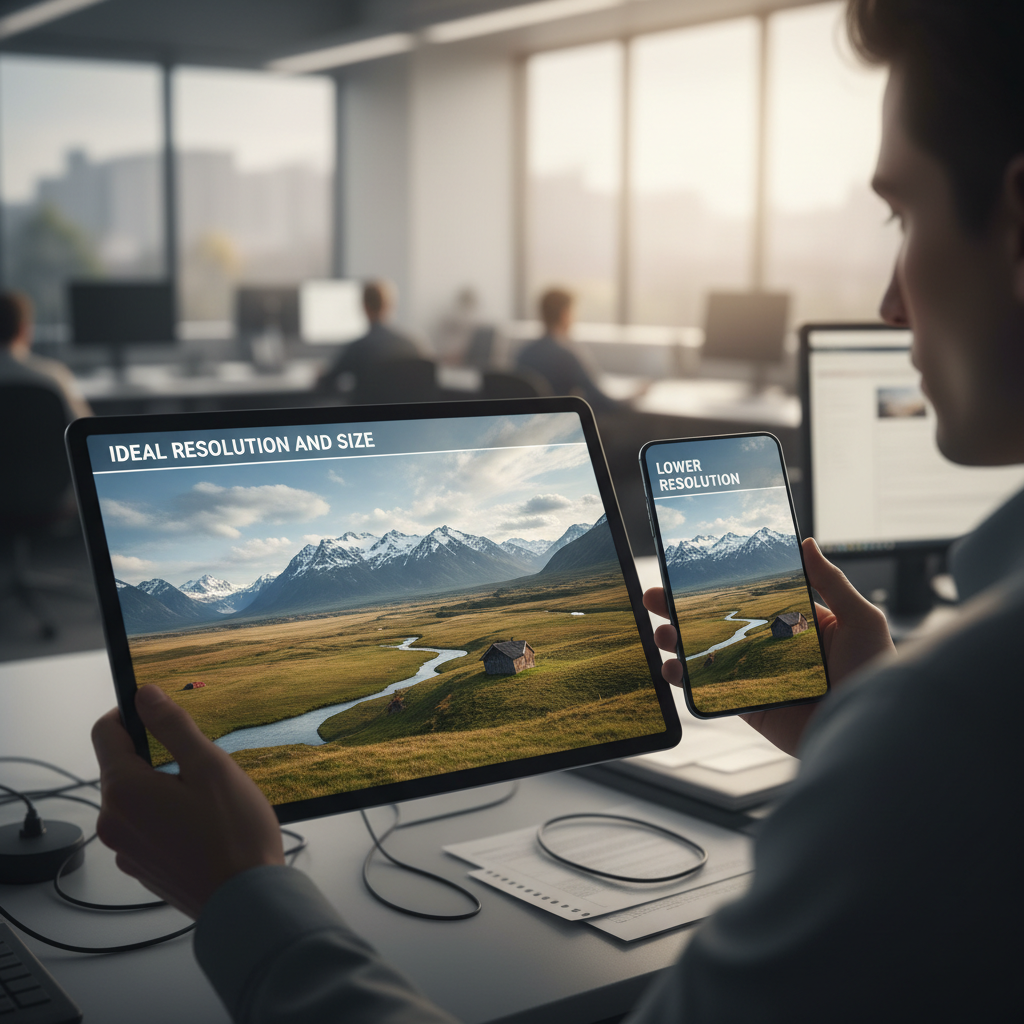
- Strive for 300 DPI (dots per inch) to ensure a crisp, high-quality image.
- Use a high-resolution camera (many modern smartphones qualify).
- The image must be free of blurriness, distortions, excessive noise, underexposure or overexposure.
Lighting and composition tips
- Use even, diffused lighting to avoid shadows on the face or background.
- Avoid direct sunlight that creates hotspots or directional shadows.
- Keep the face fully visible; hair should not cover eyes or face features.
Forbidden edits and prohibited elements
- Do not retouch, smooth, filter, or otherwise alter facial features. Filters and smoothing tools are prohibited.
- Eyeglasses are not allowed in passport photos (effective Nov 1, 2016) except for medical reasons — in that case include a signed medical statement from a doctor explaining the necessity.
- Do not wear head coverings unless required for religious reasons; if allowed, the face must remain fully visible.
File format and online submission requirements
- Save and submit the photo in JPEG format for online submissions.
- File size must be under 240 KB for online uploads.
- Use the U.S. Passport Photo Tool (recommended) to upload and run automatic size/quality checks before final submission.
Common mistakes to avoid
- Wrong overall size (not 2×2 inches).
- Head too big or too small (outside 25–35 mm range).
- Eyes not at required eye-level distance.
- Distracting background or shadows.
- Excessive editing, filters or retouching.
- Blurry, underexposed, or overexposed images.
Validation, resubmission and troubleshooting
- If a photo is rejected you will be notified with the reason (e.g., wrong size, noncompliant background).
- Use resizing tools (examples: Fotor, Passport Photo Maker) or official online tools to correct size and resubmit.
- Double-check the checklist below before uploading again.
Actionable checklist before submitting a digital photo
1. Confirm the image is square and will print/export at 2 × 2 inches (51 × 51 mm).
2. Measure head height: 25–35 mm (1–1 3/8 in) from chin to top of head.
3. Confirm eye level: 28–35 mm (1-1/8 to 1-3/8 in) from bottom of photo.
4. Use even, diffused lighting; remove shadows from face and background.
5. Background: plain white or off-white, no objects or patterns.
6. No retouching, no filters, and no glasses unless medically required with documentation.
7. Export as JPEG, ensure file size < 240 KB, and run the U.S. Passport Photo Tool or a verification service.
Final practical tips
- If unsure, use the U.S. Passport Photo Tool first — it performs an automatic size and quality check.
- Measure using a physical ruler or a reliable photo-measuring tool.
- When in doubt, retake the photo with better lighting and a plain background rather than trying heavy edits.
Following these precise size, resolution, composition and submission rules will greatly reduce the chance your passport photo is rejected. Use the numerical checks (2×2 in, head 25–35 mm, eye level 28–35 mm, 300 DPI, JPEG < 240 KB) and the practical steps above to prepare a compliant digital passport photo.